Lesson 9
Editing & Customizing
Trim scan points, add labels, and publish the polished tour.
Work through each step in order, then mark the lesson complete when you are ready to continue.
Once Matterport emails you that the model is ready, log in on a computer (my.matterport.com) to polish the tour before sharing it with the public. Open the space, click the Edit button in the top-right corner, then the tool icon on the right-hand side. Review alignment, room coverage, and overall quality before you publish.
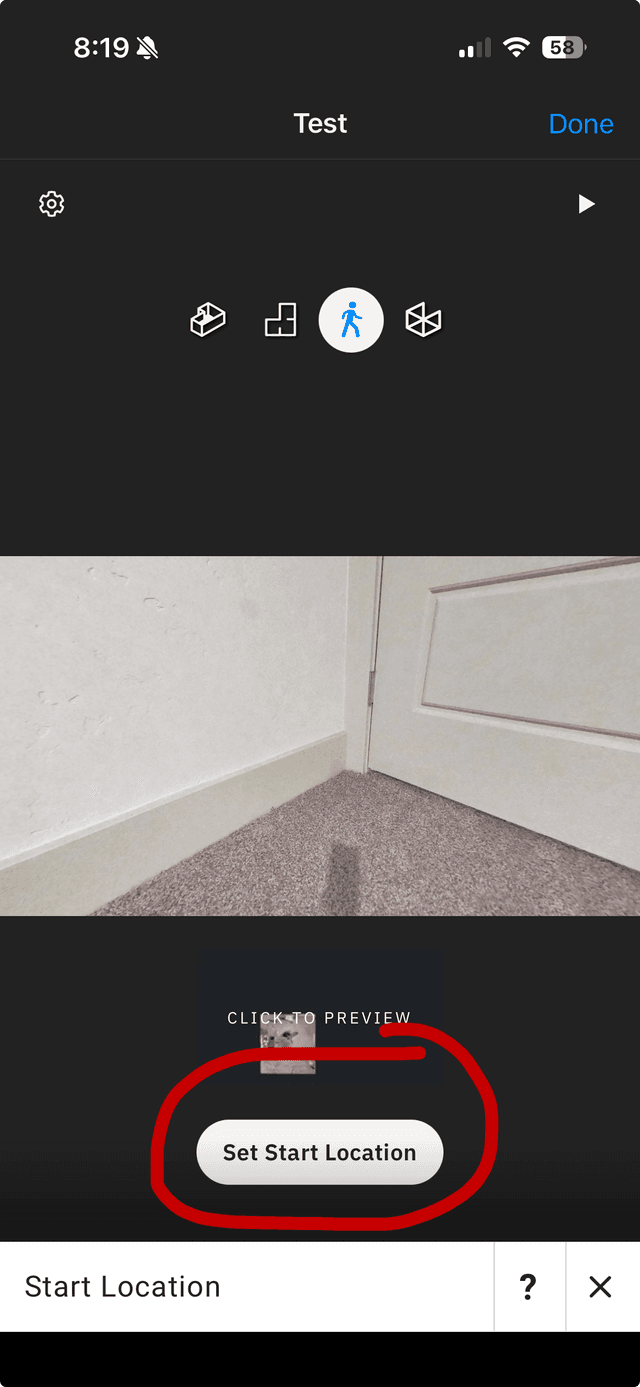
1 Set the Start Location
You get to choose the very first thing people see when they click your link. Navigate through the 3D tour until you find the perfect angle (usually right inside the front door looking into the living room). Click the Start Location icon on the right-hand toolbar. Click Set, and that view becomes your front door.
2 Name Your Rooms (Labels)
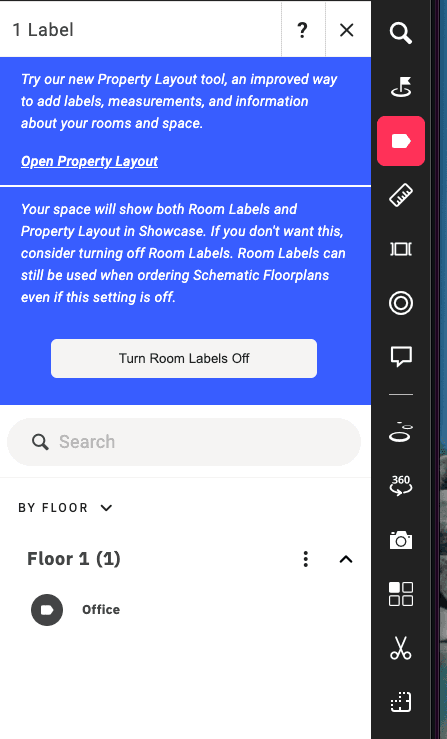
Make the floor plan easy to read by labeling each room. Click the Labels icon. Click Add and click on the floor plan where you want the text to live. Type in the room name (e.g., "Primary Bedroom" or "Kitchen") and hit save.
3 Highlight Features with Tags
Want to point out a brand-new appliance, a smart-home feature, or a walk-in closet? Click the Tags icon (it looks like a bullseye/pin). Click the exact spot on the screen where you want the pop-up to appear. Type a title (e.g., "Brand New Appliances") and click Save. Visitors will now see a clickable dot they can read.
4 Add rooms if something is missing
If you need another room or scan, open the space in the capture app, capture the new scan, and position it correctly in the property layout. Then re-upload and wait for processing again.
5 Create a Highlight Reel (Guided Tour)
This is how you force a viewer through a specific path, just like a real open house. Click the Highlight Reel icon at the bottom of the screen. Walk to the first room you want to show, and click the Camera Icon to take a snapshot. Move to the next room and take another snapshot. Matterport will automatically link these photos together into a smooth, 1-minute guided video tour!